


Usage
Syng.Rocks! is divided into three components. A playback client, that opens a karaoke session, runs on your machine and plays the karaoke songs, a web client, that participants of your karaoke event can use to search for karaoke songs and add them to a queue and a backend server, that manages all karaoke sessions and serves the web client to the users.
Depending on your use case, you may only need the download the playback client and use the web client and server of the main Syng.Rocks! instance, or self host the whole thing. The choice is up to you.
Basic Usage
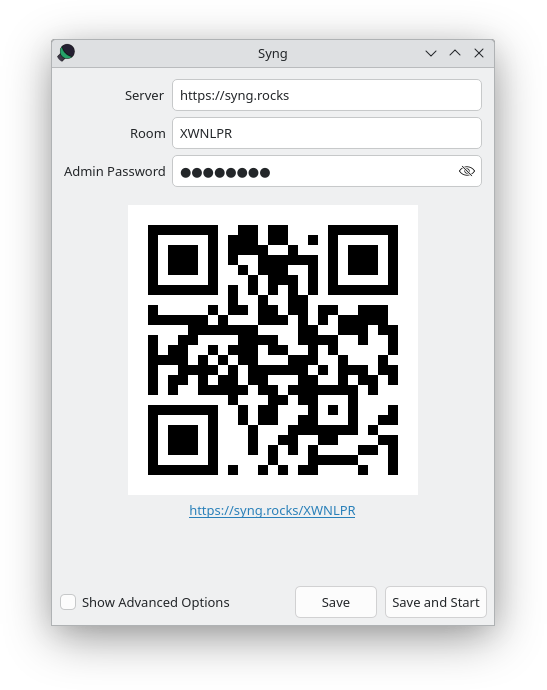
If you just want to have a private karaoke party with your friends, you probably do not need any configuration. Just start the client, and click on Connect. The YouTube source is included by default. You may alter the room code and the admin password if you do not like the auto generated name and password. Note, that if the room code is already in use, you must enter the password, that was used for it.
This creates a room on the syng.rocks server for you. Note the room code and the admin password. You can share room code or the link with your friends (e.g. by letting them scan the QR-Code), to let them search for songs and add them to the karaoke queue.
You can log in to the web interface yourself and enter the admin password under Advanced to be able to modify the queue.
Advanced Usage
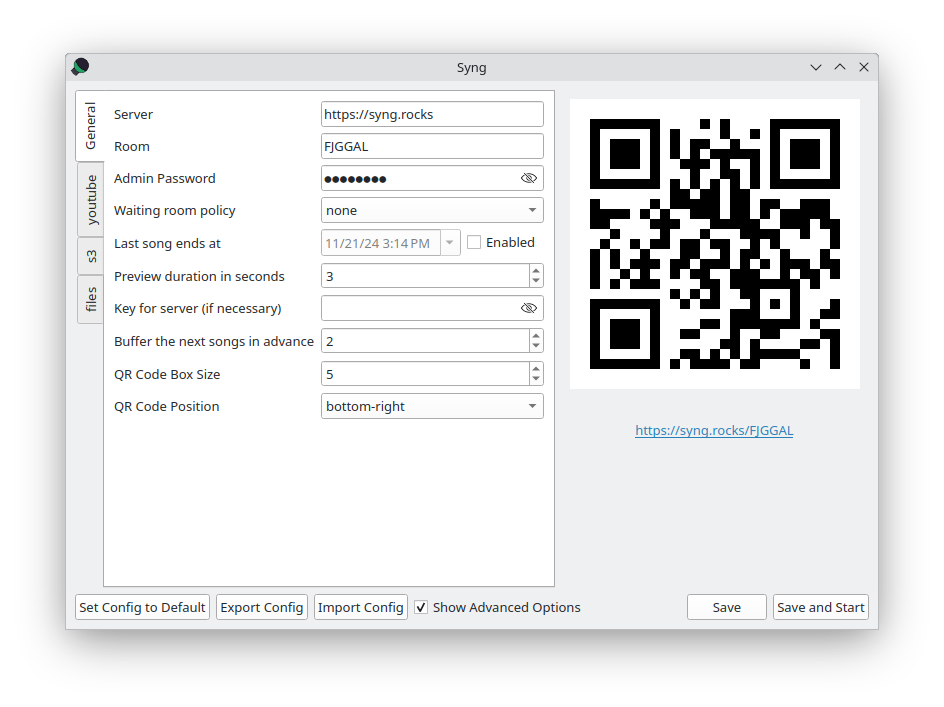
If you want to include other sources, like karaoke songs on your conputer or on a s3 storage server, or want to change the way Syng.Rocks! behaves, you need to configure the software to use then. You can enable more advanced settings by setting the option Show Advanced Options. Most of the options should be self explanatory, see FAQ for details on a few concepts. If you still have questions, feel free to reach out on Mastodon or Matrix.
Some highlights are a waiting room to enforce that guests are only once in the queue and a fixed end time for the event, so songs are rejected, that would end after that time.
Manual configuration
In addition to the advanced settings in the UI, you can configure syng through its yaml configuration file. Usually this is not needed, since all options can be configured through the GUI. We only show the options here for completeness.
You can find the configuration file at ~/.config/syng/config.yaml on Linux or somwhere on windows (TODO where?). As of version 2.2.2, the following options exists:
server: URL of the server to connect to.room: The room code for your karaoke event. Can be chosen arbitrarily, but must be unique. Unused rooms will be deleted after some time. Note: Everyone, that has access to the room code can join the karaoke event.secret: The admin password for your karaoke event. If you want to reconnect with a playback client to a room, these must match. Additionally, this unlocks admin capabilities to a web client, when given under "Advanced" in the web client.waiting_room_policy: One ofnone,optional,forced. When a performer wants to be added to the playback queue, but has already a song queued, they can be added to the waiting room.nonedisables this behavior and performers can have multiple songs in the queue,optionalgives the performer a notification, and they can decide for themselves, andforcedputs them in the waiting room every time. Once the current song of a performer leaves the queue, the song from the waiting room will be added to the queue.last_song:noneor a time in ISO 8601. When a song is added to the queue, and its ending time exceeds this value, it is rejected.preview_duration: Before every song, there is a short slide for the next performer. This sets how long it is shown in seconds.key: If the server, you want to connect to is in private or restricted mode, this will authorize the client. Private server reject unauthorized playback clients, restricted servers limit the searching to be client only.buffer_in_advance: How many songs should be buffered in advanced.qr_box_size: The size of one box (think pixel) of the QR Code in the playback window.qr_position: Position of the QR Code in the playback window. One ofbottom-left,bottom-right,top-left,top-right.show_advanced: Show advanced options in the configuration GUI.
In addition to the general config, has its own configuration under the sources key of the configuration.
YouTube
Configuration is done under sources → youtube with the following settings:
enabled:trueorfalse.channels: list of YouTube channels. If this is a nonempty list, Syng will only search these channels, otherwise YouTube will be searched as a whole.tmp_dir: YouTube videos will be downloaded before playback. This sets the directory, where YouTube videos are stored.max_res: Maximum resolution of a video.start_streaming:trueorfalse. Iftrue, videos will be streamed directly usingmpv, if the video is not cached beforehand. Otherwise, Syng waits for the video to be downloaded.seach_suffix: A string that is appended to each search query. Default is "karaoke".max_duration: Maximum length of accepted videos in seconds. Default is 1800 (30 minutes)
S3
Configuration is done under sources → s3 with the following settings:
enabled:trueorfalse.extensions: List of extensions to be searched. For karaoke songs, that separate audio and video (e.g. CDG files), you can usemp3+cdgto signify, that the audio part is amp3file and the video is acdgfile. For karaoke songs, that do not separate this (e.g. mp4 files), you can simply usemp4.endpoint: Endpoint of the s3.access_keyAccess key for the s3.secret_key: Secret key for the s3.secure: Iftrueusesssl, otherwise not.bucket: Bucket for the karaoke files.index_file: Cache file, that contains the filenames of the karaoke files in the s3.tmp_dir: Temporary download directory of the karaoke files.
Files
Configuration is done under sources → files with the following settings:
enabled:trueorfalse.extensions: List of extensions to be searched. For karaoke songs, that separate audio and video (e.g. CDG files), you can usemp3+cdgto signify, that the audio part is amp3file and the video is acdgfile. For karaoke songs, that do not separate this (e.g. mp4 files), you can simply usemp4.dir: Directory, where the karaoke files are stored.
Default configuration
config:
  key: ''
  last_song: null
  preview_duration: 3
  room: <Random room code>
  secret: <Random secret>
  server: https://syng.rocks
  waiting_room_policy: none
  show_advanced: false
  buffer_in_advance: 2
  qr_box_size: 5
  qr_position: bottom-right
  next_up_time: 20

sources:
  files:
    dir: .
    enabled: false
    extensions:
    - mp3+cdg
  s3:
    access_key: ''
    bucket: ''
    enabled: false
    endpoint: ''
    extensions:
    - mp3+cdg
    index_file: ${XDG_CACHE_DIR}/syng/s3-index
    secret_key: ''
    secure: true
    tmp_dir: ${XDG_CACHE_DIR}/syng
  youtube:
    channels: []
    enabled: true
    start_streaming: false
    max_res: 720
    tmp_dir: ${XDG_CACHE_DIR}/syng
    search_suffix: karaoke
    max_duration: 1800
Logging in
The web interface is used to search for songs and add them to the queue. You can either visit syng.rocks manually and enter your room code to connect to a karaoke session.
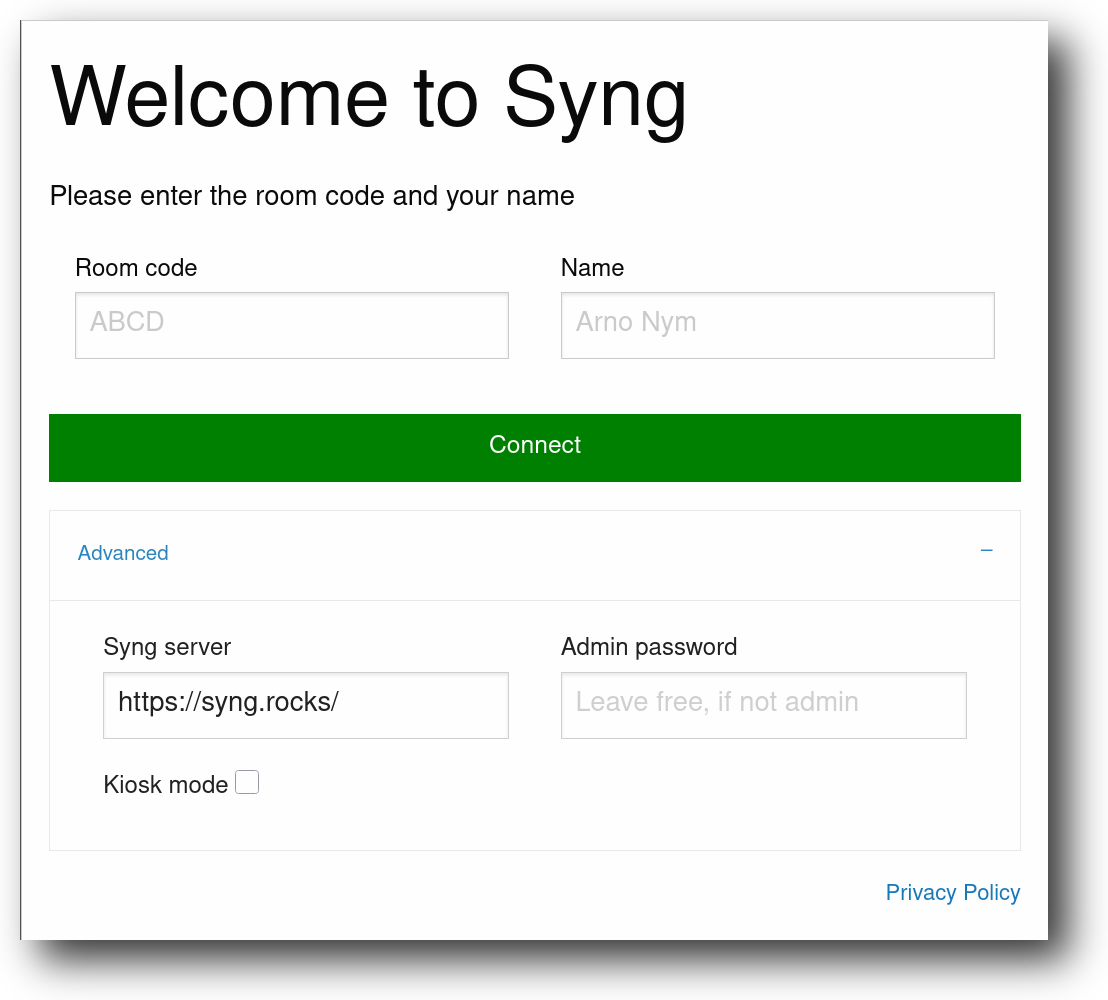
When opening the web interface, you are greeted with a welcome screen, asking you to enter a room code and your name. When visiting via a QR code given to you by the organizer, the room code is most likely already filled in. You do not need to enter a name, if you choose to let this blank, you will be asked for a name every time, you add a song to the queue.
If you are the organizer, you can enter the admin password for your session under Advanced and moderate the queue (remove items, reorder). If wanted, you can also change the server, this client connects to, but this should not be necessary, unless you are actively developing the web client.
Lastly, you can set this client to kiosk mode, in this case you cannot set a custom user name. This is useful, if you are an organizer and want to offer your users a machine, where they can search for songs and add them, without them needing to rely on their own devices.
Searching
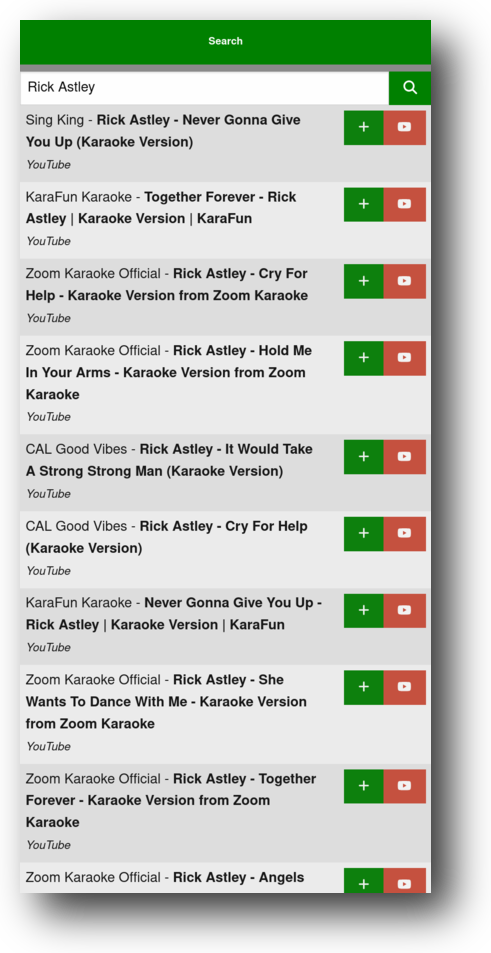
You can enter a search term and it will be forwarded to the playback client. The playback client then searches its configured sources and returns a list of results, that can be added to the queue.
If your organizer has configured a YouTube source, it will automatically add karaoke to each request. It also offers you a way to open the resulting YouTube video in a new tab. Additionally, you can enter a YouTube link in the search bar, to directly add it to the queue.
Queue
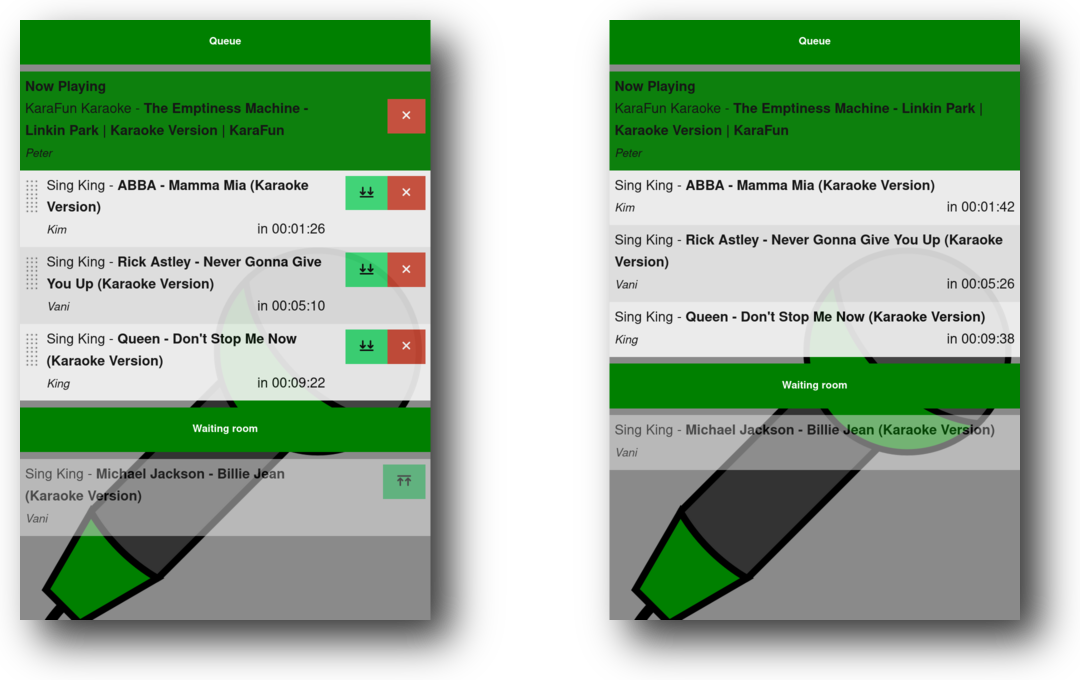
The queue shows you who is currently singing and who is up next. Notably, it gives you an estimate, when your song is up.
It also shows you the current waiting room. If it is configured, you get put into a waiting room, if your name is already in the queue. Once you are no longer with a song in the queue, you are added at the end of the queue.
If you log in with the administration password, you are in moderation mode, meaning you can remove songs, reorder the queue (drag and drop with the handlebar on the right) and manually put songs in and out of the waiting room.
Unless you really want to host your own server, there is no need to set one up. You can always use the public instance on https://syng.rocks. That being said, you can use the following options to when starting the server.
Port and host
Port and host can be configured using -p/--port and -H/--host.
Public, Private, Restricted
The main thing you can configure whether your instance is public, restricted or private.
- Public (Default)
-
Anyone can create rooms on the server and the server handles the all search requests themselves (instead of relaying them to a playback client). This is only advised for servers, that are not reachable from the internet, since excessive searching on YouTube can lead to the IP of the server being blocked.
- Restricted (
-R,--restricted) -
Anyone can create rooms on the server, but searching requires the client to be authorized on the server. If a client is not authorized, searching will be forwarded to the client and not handled by the server directly.
- Private (
-P,--private) -
Only authorized clients can create rooms.
Authorization is handled via a key, that the client can provide. Keys are stored on the server as their SHA256 hash in a simple textfile, one hash per line. You can add them via
echo -n "PASSWORD" | sha256sum | cut -d ' ' -f 1 >> keys.txt
and start the server with -k keys.txt. You do not need to restart the server, if you add keys.
View Stats
If you set -a/--admin-port to enable a statistics view on the chosen admin port. It shows you open rooms and connected clients as a JSON-Object. Note: Currently there is an option --admin-password, that is unrelated and will be removed soon.
Serving a different webclient
By default, the server serves its built-in web client. If you want to serve a different web client, you can set its root path with -r/--root-folder.